Downloading CESM Data from the NCAR Website
(Work in progress!)
This tutorial will go through the different steps of downloading CESM data on to Keeling from the NCAR website. This tutorial is fairly similar to the one used to download CMIP5 and CMIP6 data, although a little simpler.
Publicly available datasets like the CESM large ensemble and the CESM1 last millenium ensemble can be accessed here, which is where our tutorial will start.
Step 0: Create an NCAR Account (You can skip if you already have one)
Click on the Sign in button on the top right of the home screen. You’ll be asked if you want to sign in with ORCid, UCAR CIT, or create an NCAR account.
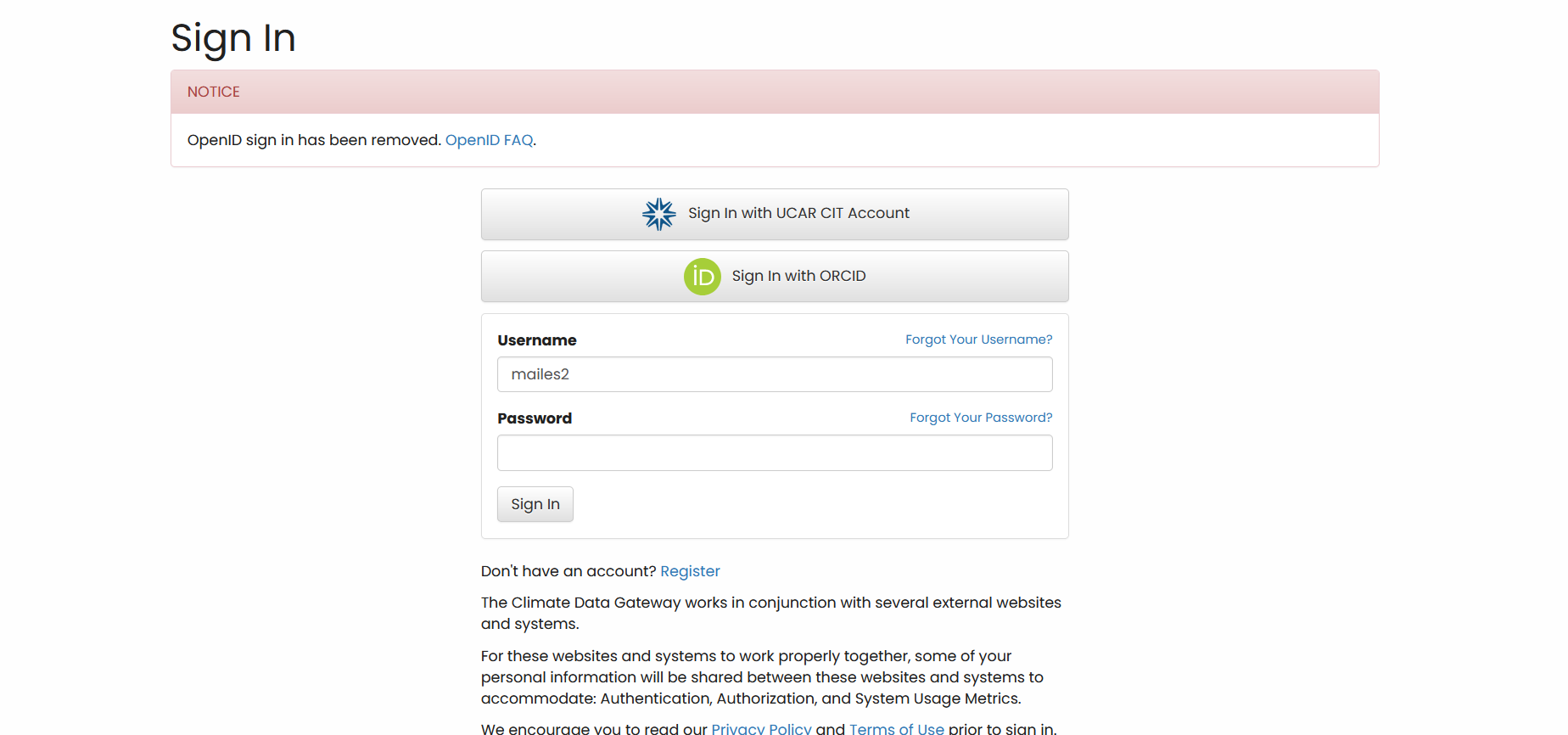
I’ve had issues with using ORCid to access earthsystemgrid.org in the past, so it would be suggested to use an NCAR account, since it’s fairly simple to set up.
After creating an account, you can sign in and start downloading data!
Step 1: Find datasets
There’s several different ways to access the different datasets on earthsystemgrid.org, but mostly you’ll want to start by searching for the specific project that you’d like data from.
Method 1a: Searching from the homepage
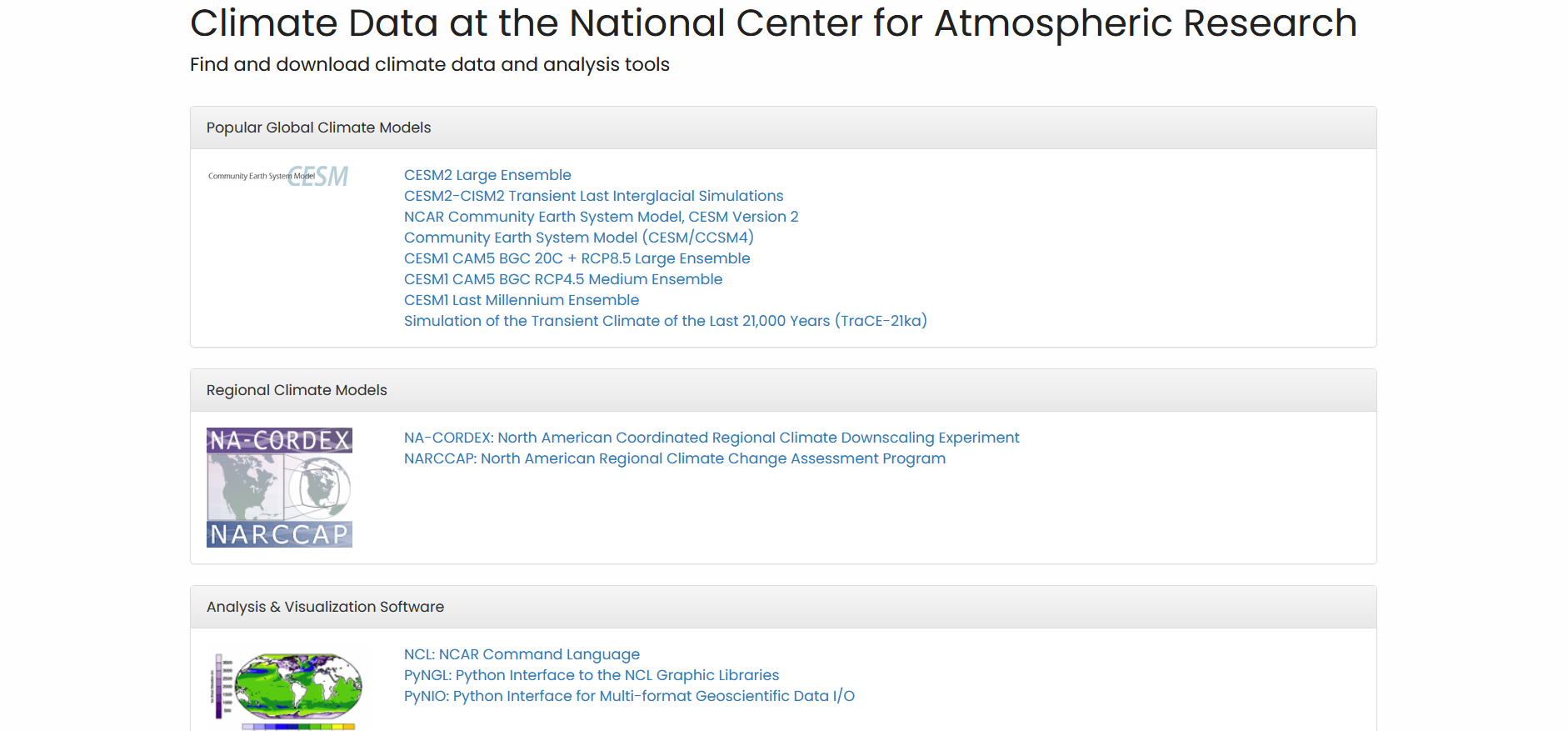
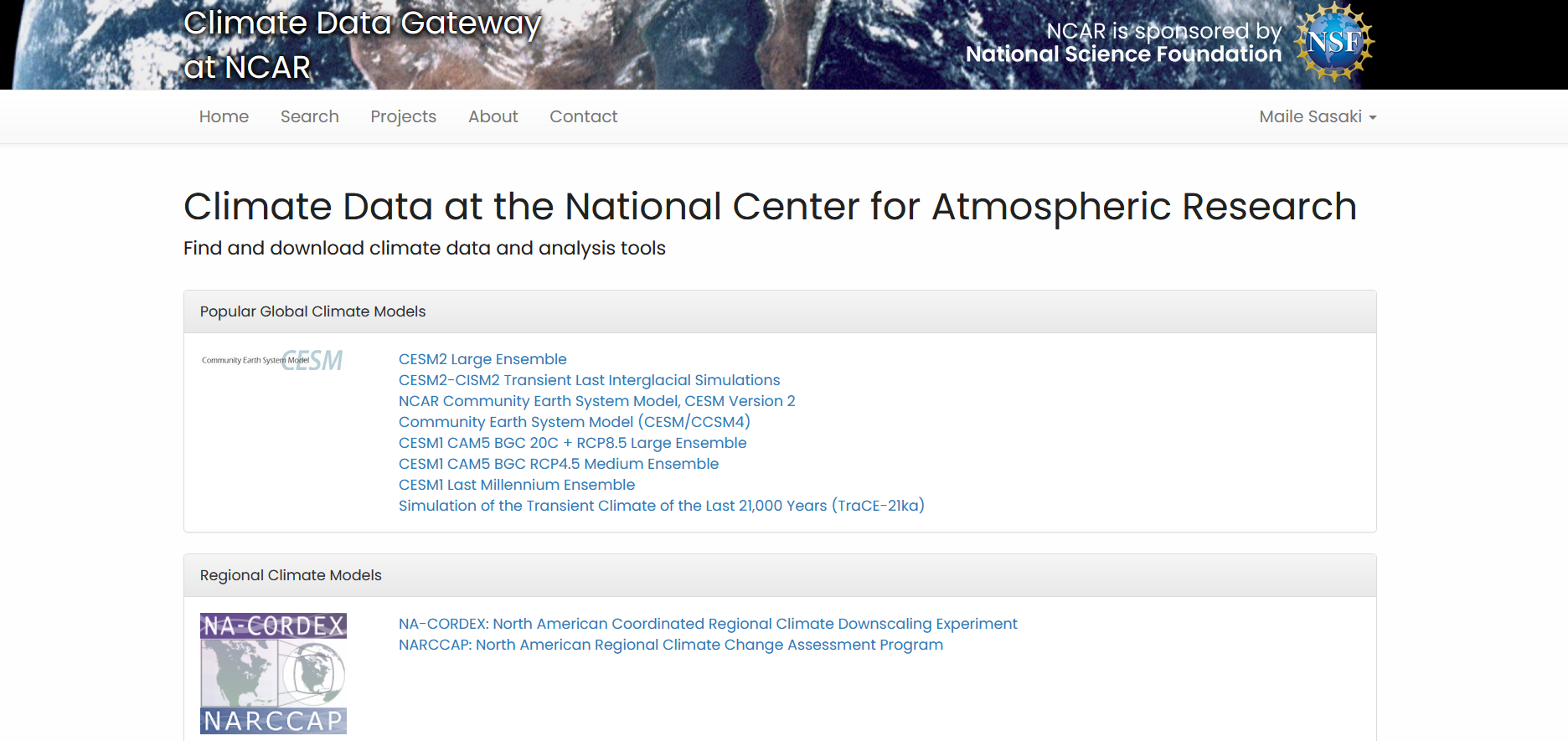
The search tab doesn’t contain many key datasets, so you may want to start your search at the homepage.
The homepage has several NCAR projects like the CESM large ensemble (CESM-LE) that you may want to look into before doing a detailed search. Clicking on one of those links will take you to a page that details specifics about the project, contact information, related articles, and more. You’ll also be typically given either child datasets to look at and download, or a button that will take you to download options.
Some data may require further authorization or special permissions in order to access or download them.
Addendum: CESM Large Ensemble Data Variables
When listed on the website under the child datasets for CESM-LE, the variables are often undescribed and left in their shortened form, creating some confusion.
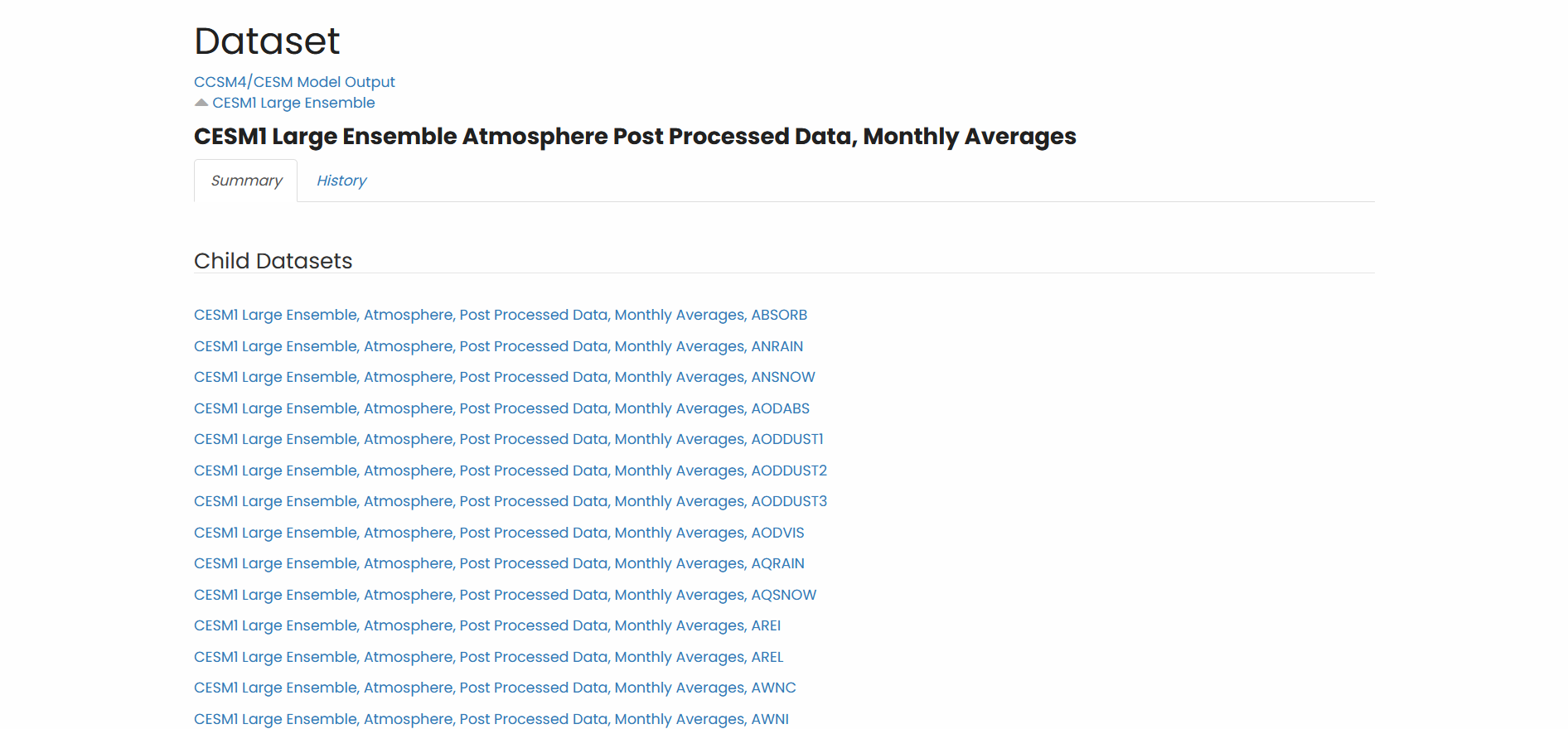
In order to figure out what each variable is, go to the Datasets Available to the Community page on NCAR’s website. You can search for the variable you would like at the bottom of the page.
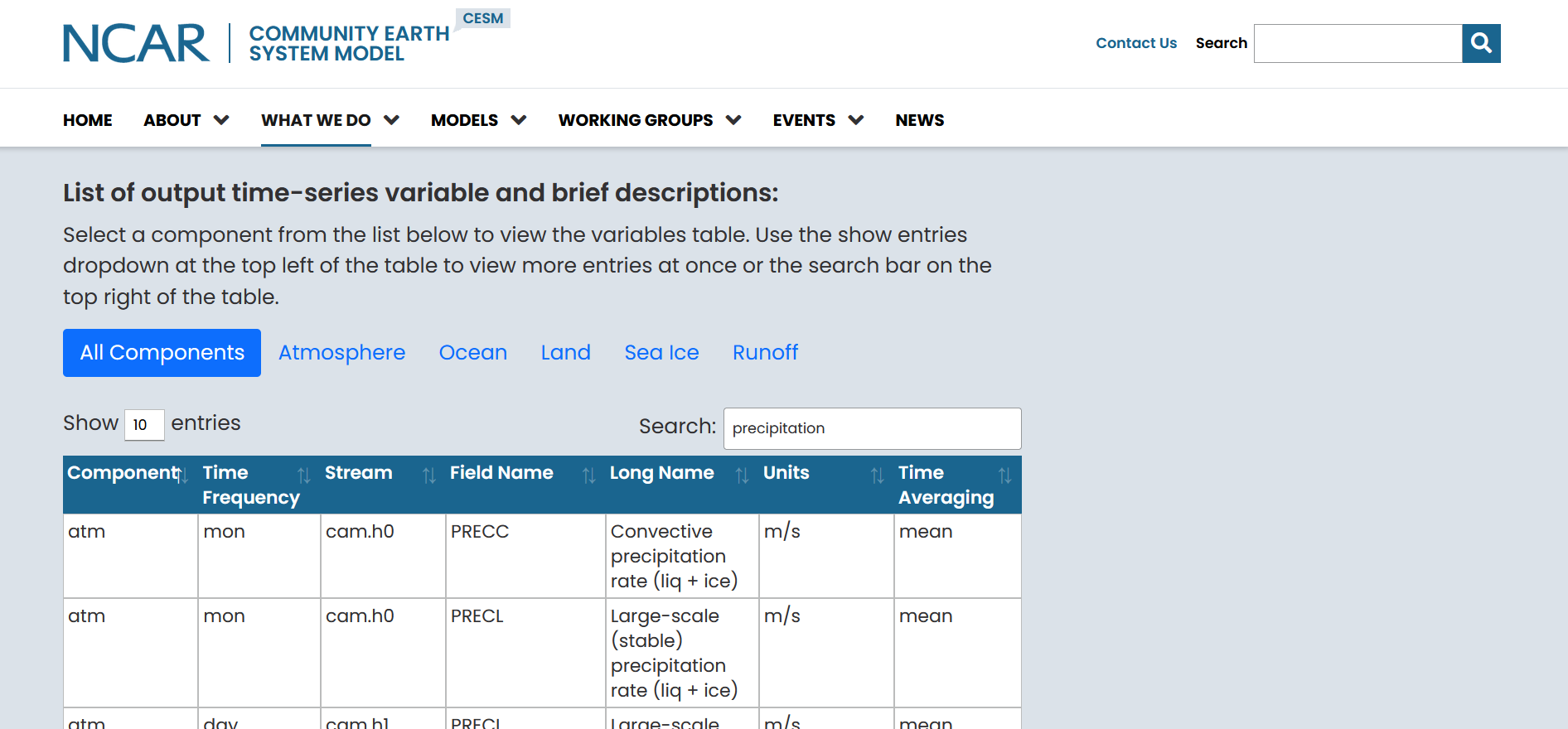
By looking for precipitation, for example, you can find if there’s data for the specific time frequency you need, what the stream name is, what the shortened variable name is, the units, and other information that can help you with your search.
After searching back on the earthsystemgrid website for the specific dataset you need, you can go ahead and click on Download Options to continue.
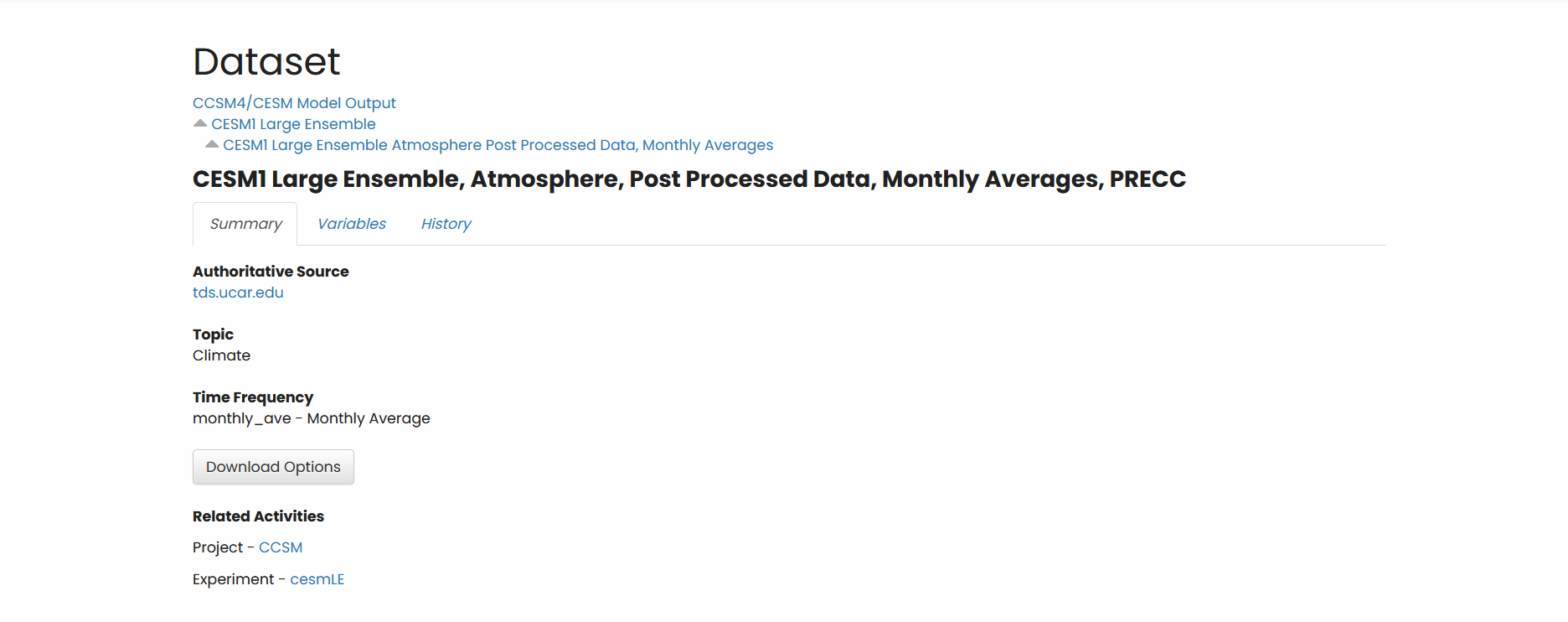
Method 1b: Searching through the Projects tab
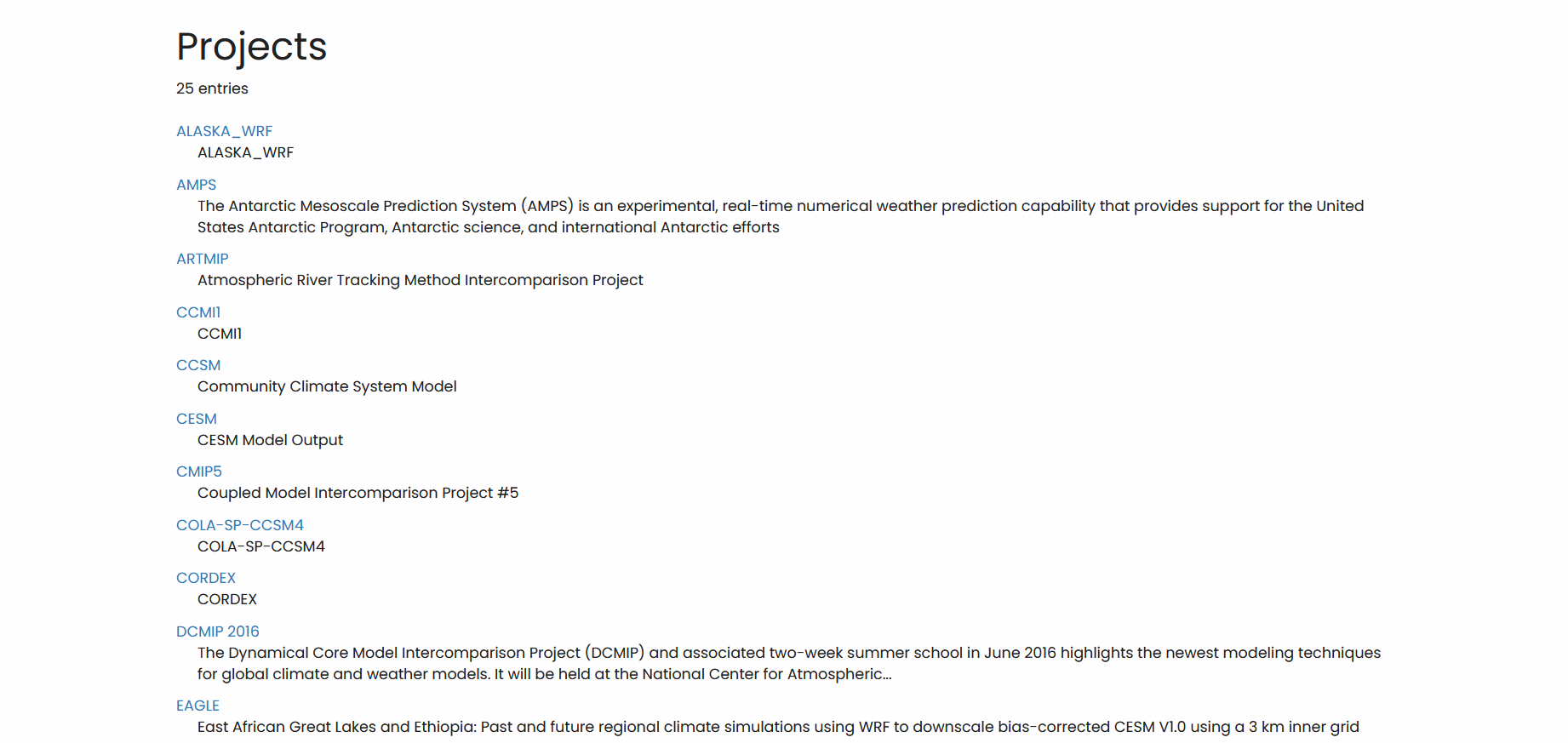
Clicking on the Projects tab will take you to a directory of different models and projects, like CMIP5 and CCSM. Each of these links will take you to the search tab with the selected project or model highlighted. This may help simplify your search.
Method 1c: Using the Search tab
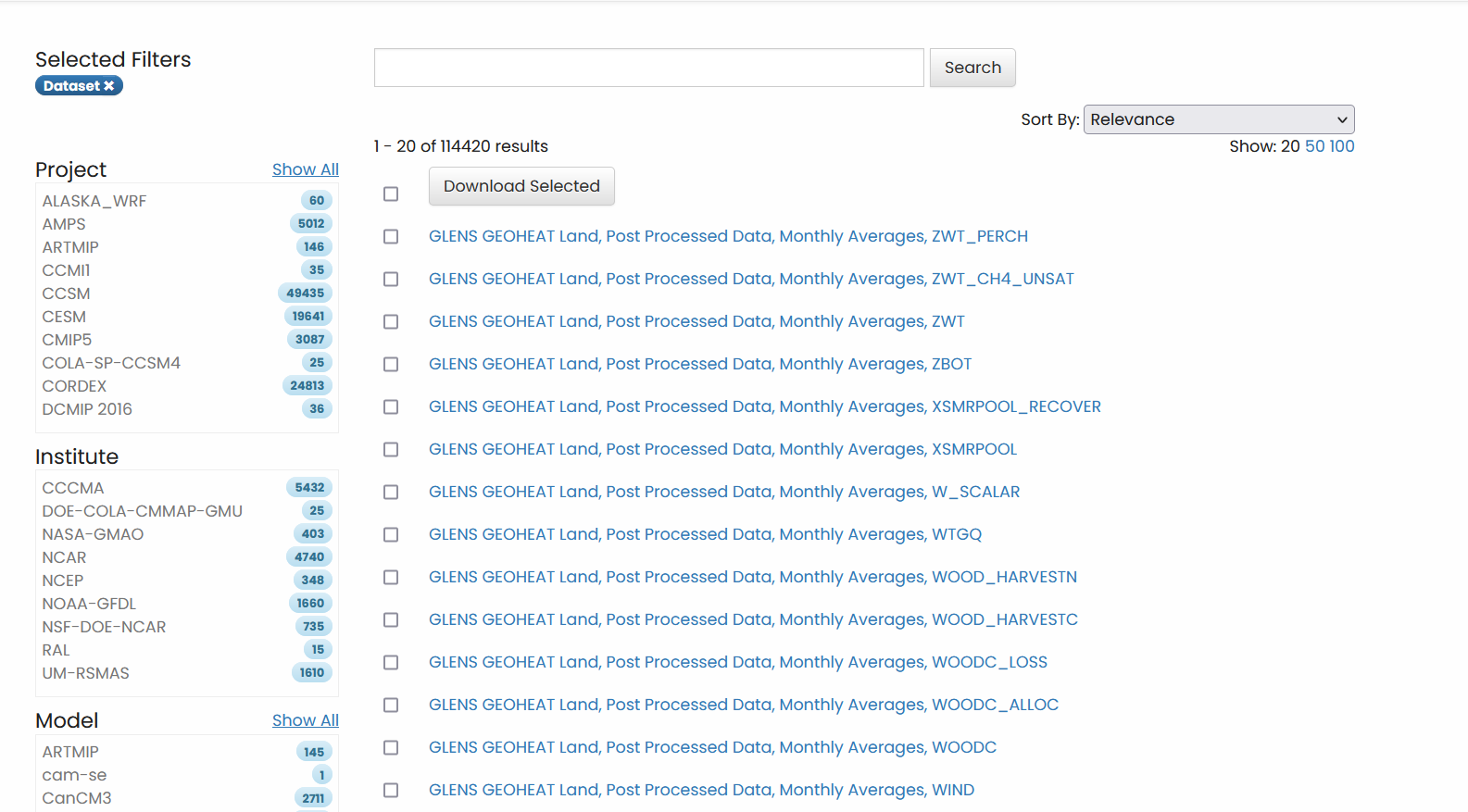
You can also use the filters on the left in order to find the specific model data you need. This separates the data by:
Project
e.g. CMIP5, ALASKA_WRF, CESM
Institute
e.g. NCAR, NASA-GMAO
Model
e.g. CESM, CanCM3
Experiment
e.g. 19790101, 19790201
Frequency
e.g. Daily, 3-Hourly, Annual Average
Product
e.g. hist, proc, verif
Realm
e.g. aerosol, atmos, land
CF Variable
e.g. 10-m wind, HDO snow ice
Variable Name
e.g. a2x1d_Faxa_dstwet2
Ensemble
e.g. r0i0p0, r13i1p1
Publisher
e.g. UCAR/NCAR
Addendum: CESM data labeling
CESM data labeling follows a very specific format, which can be hard to parse at first but can help you find the specific datasets you need.
Example File: b.e11.B1850C5CN.f09_g16.005.cam.h0.OMEGA.040001-049912.nc
Each part of the label is separated by periods.
Component set: the specific set of CESM models and type of simulation done
e.g. b (full model), f (atmosphere only)
Code base
e.g. e11, e20
Full component set: Simulation specifics
e.g. B1850C5CN (1850 preindustrial control in B compset), B20TRC5CNBDRD (historical simulation in B compset)
Resolution
e.g. f09_g16, f09_f09
Experiment number
e.g. 001, 035, 101
Model data variable: The specific model that the variable pertains to
e.g. cam (atmosphere), pop (ocean)
Historical file indicator
e.g. h0, h1
Variable name
e.g. OMEGA (vertical upwards motion), TREFHT (temperature reference height), TS (surface temperature)
Simulation time: format yyyymm
e.g. 040001-049912 (Simulation from year 400 to year 500 for a given experiment), 192001-202912 (1920-2030 simulation)
File type
Typically nc (netCDF file)
Step 2: Download Data
After successfully selecting the data you’d like to download, click either “Download Selected” or “Download Options for Selection”. This should take you to a page that looks like the below:
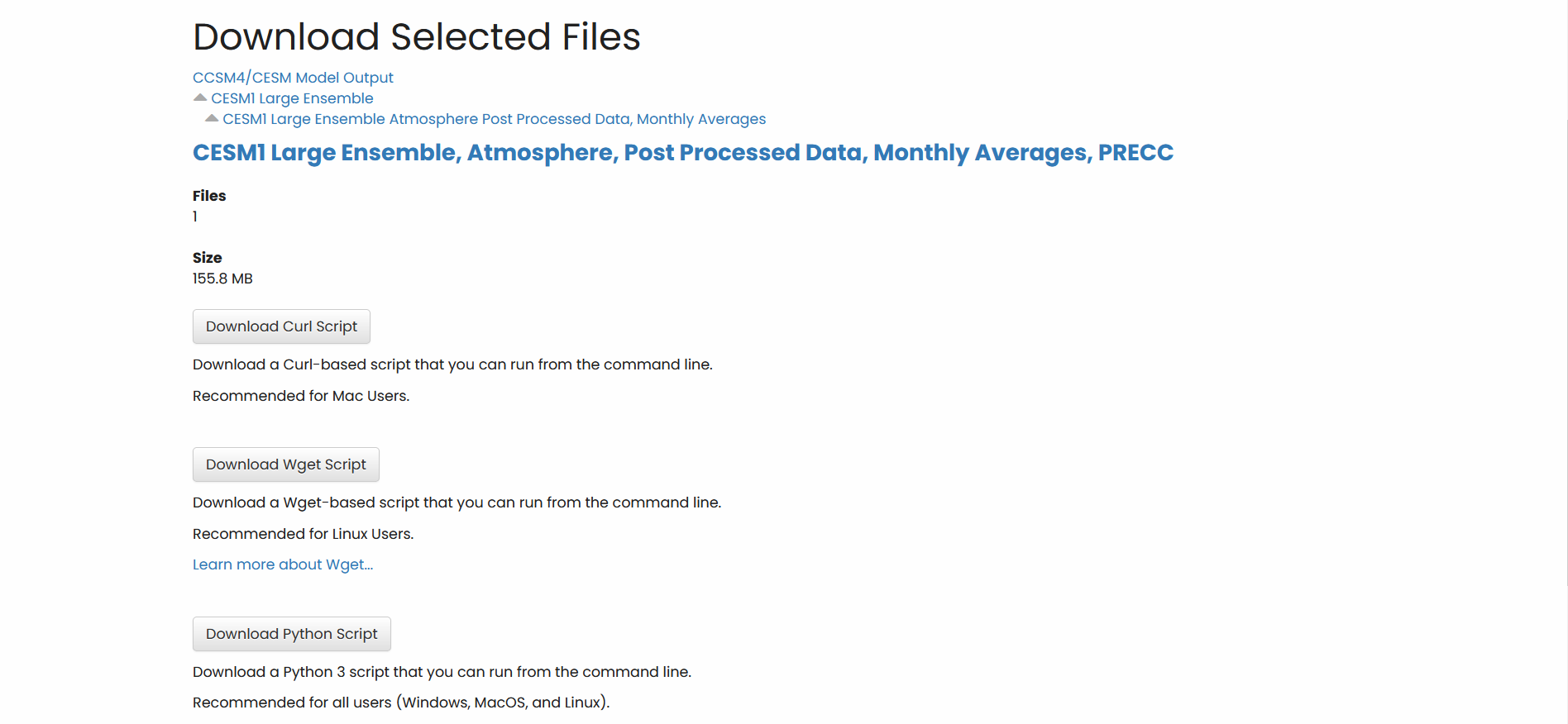
Click “Download Wget Script”, which should bring up a popup to save a wget script.
Download this file onto your computer, and then scp it on to keeling in the repository where you’d like the data to be.
Here, I’ll be putting the wget script into data_tmp.
scp wget-ucar.cgd.ccsm4.cesmLE.atm.proc.monthly_ave.PRECC-20230323T1624Z.sh mailes2@keeling.earth.illinois.edu:/data/keeling/a/cristi/a/data_tmp/LENS
Run the script, and the data should start downloading!
bash wget-ucar.cgd.ccsm4.cesmLE.atm.proc.monthly_ave.PRECC-20230323T1624Z.sh
The print statements should look something like this:
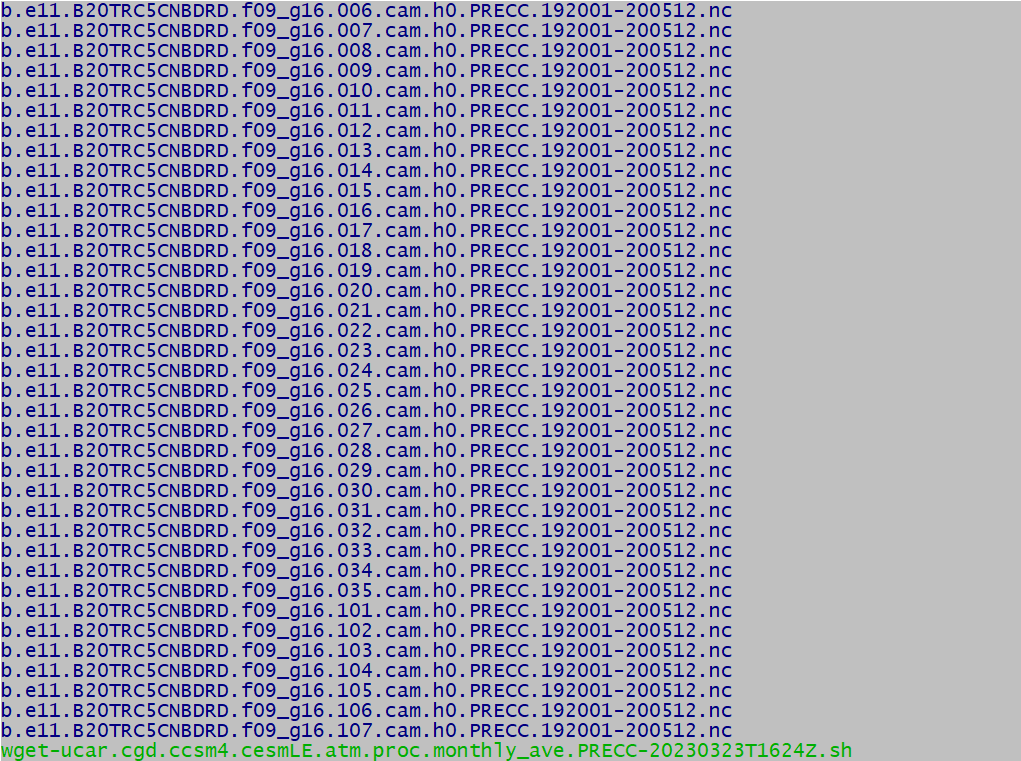
b.e11.B20TRC5CNBDRD.f09_g16.107.cam.h0.PRECC.192001-200512.nc ...Downloading
--2023-03-27 15:33:04--  https://tds.ucar.edu/thredds/fileServer/datazone/campaign/cesm/collections/cesmLE/CESM-CAM5-BGC-LE/atm/proc/tseries/monthly/PRECC/b.e11.B20TRC5CNBDRD.f09_g16.107.cam.h0.PRECC.192001-200512.nc?api-token=HRRVNbbbSBMLxqlNBO9vEdDh66JqChEOCV1MZ8Uc
Resolving tds.ucar.edu (tds.ucar.edu)... 128.117.181.7
Connecting to tds.ucar.edu (tds.ucar.edu)|128.117.181.7|:443... connected.
HTTP request sent, awaiting response... 200
Length: 141309793 (135M) [application/x-netcdf]
Saving to: 'b.e11.B20TRC5CNBDRD.f09_g16.107.cam.h0.PRECC.192001-200512.nc'

100%[=============================================>] 141,309,793 48.6MB/s   in 2.8s

2023-03-27 15:33:07 (48.6 MB/s) - 'b.e11.B20TRC5CNBDRD.f09_g16.107.cam.h0.PRECC.192001-200512.nc' saved [141309793/141309793]

Can't verify checksum.
   ok. done!